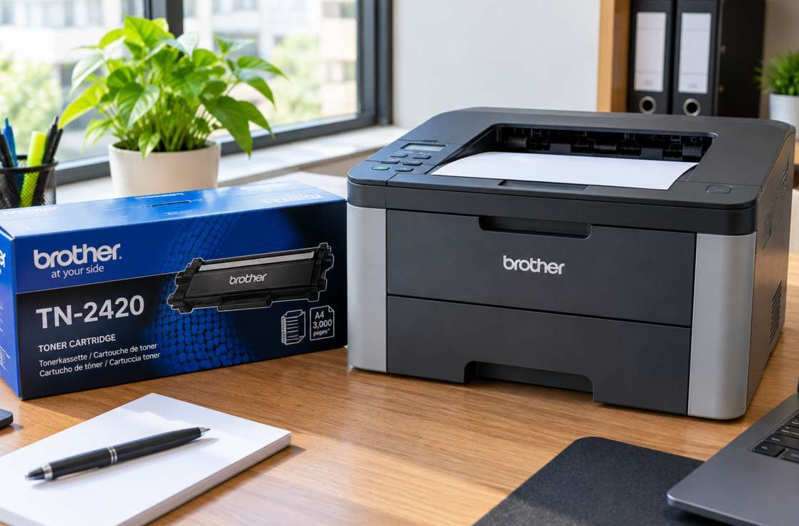
How to Find the Right Toner for Your Brother Printer Model

You open the box of a new toner cartridge, slide it into your Brother printer, and the printer refuses to accept it. It happens more often than you’d think, and the cause is almost always the same: the cartridge wasn’t the right match.
Brother makes dozens of printer models, and each one works with specific cartridges. Picking the right Brother toner cartridges doesn’t take technical knowledge, just a few simple checks. This guide shows you how to do it with confidence.
Why Choosing the Right Toner Matters
The wrong cartridge is more than an inconvenience. It can lead to:
- Error messages and a printer that won’t recognize the cartridge
- Faded prints, lines or smudges
- Wasted money on a cartridge you can’t use
- Extra wear on the printer’s internal parts
A few minutes of checking before you buy saves time and money.
Step 1: Find Your Exact Printer Model
Your model name is usually printed on the front of the printer, near the top or beside the control panel. You can also check the label on the back or underneath, or look in the manual or the original box.
Brother model names look like HL-L2350DW, DCP-L2540DW or MFC-L2750DW. Write down the full name, including the letters at the end. Those letters matter, because two similar-looking models can use different cartridges.
Step 2: Match the Toner Code
Brother cartridges use codes that start with TN, followed by a number, such as TN-2410 or TN-2480. Here’s the rule to remember:
- TN codes are toner cartridges
- DR codes are drum units, a separate part on many Brother laser printers
Many people buy a toner when they actually need a drum, or the other way around. If your prints show streaks but the toner is fine, the drum may be the real problem. Always check which part your printer is asking for.
You can find the compatible code in your manual, on the old cartridge itself, or on Brother’s support website by searching your model.
Step 3: Choose Between Standard and High-Yield
Most Brother toners come in two sizes:
- Standard yield: a lower price up front, and enough for light printing
- High yield: more pages per cartridge and a lower cost per page, better for busy homes and offices
If you print a lot, a high-yield cartridge usually works out cheaper in the long run. For occasional printing, standard is fine, and the toner won’t sit unused for months.
Step 4: Decide Between Original and Compatible
Original cartridges are made by Brother and designed for your printer. They give the most predictable results.
Compatible cartridges are made by other companies and cost less. Quality varies widely, so the supplier matters a great deal. Good ones perform well, while poor ones can leak, print unevenly or trigger error messages.
Whichever you pick, buy from a supplier who can confirm compatibility with your exact model and who stands behind the product.
Step 5: Buy From a Trusted Supplier
Before ordering, check that the supplier lists your model clearly, offers support if something doesn’t fit, and sells products in sealed, proper packaging. Be careful with prices that look too good to be true. Very cheap cartridges often contain less toner or poor-quality chips.
What If the New Toner Still Doesn’t Work?
Sometimes you’ve bought the correct cartridge and the printer still complains. Try these simple steps:
- Remove all protective tape and covers from the new cartridge.
- Slide the cartridge in firmly until it sits fully in place.
- Wipe the metal contacts gently with a dry, lint-free cloth.
- Close the cover completely and restart the printer.
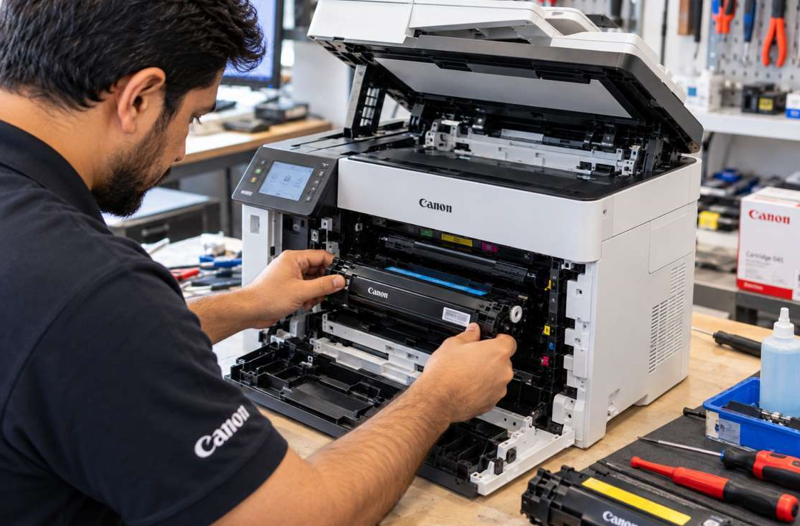
If the error remains with a correct, brand-new cartridge, the fault may lie inside the printer, such as a faulty sensor or a worn part. At that point, a trusted Brother printer repair in Dubai service can test the machine and fix the exact problem, which is usually cheaper than replacing the printer.
Common Mistakes to Avoid
- Buying by printer series instead of the full model name
- Confusing a toner cartridge with a drum unit
- Ordering the wrong yield because the box looks similar
- Choosing the cheapest option without checking quality
- Leaving the protective seal on the new cartridge
- Waiting until the toner is completely empty to order
When Should You Get Extra Help?
Consider asking a technician for help if:
- The printer rejects every cartridge you try
- Prints stay faded or streaky after a new cartridge
- You hear grinding or clicking noises
- The printer shuts down or shows unclear errors
Opening a printer without training can damage delicate parts, so it’s safer to leave internal faults to a profession
Final Thoughts
Finding the right toner for your Brother printer comes down to a few easy steps: check your full model name, match the TN code, pick the right yield, and buy from a supplier you trust. Do that, and you’ll avoid most error messages and wasted money. If problems continue even with the correct cartridge, get the printer checked rather than guessing.